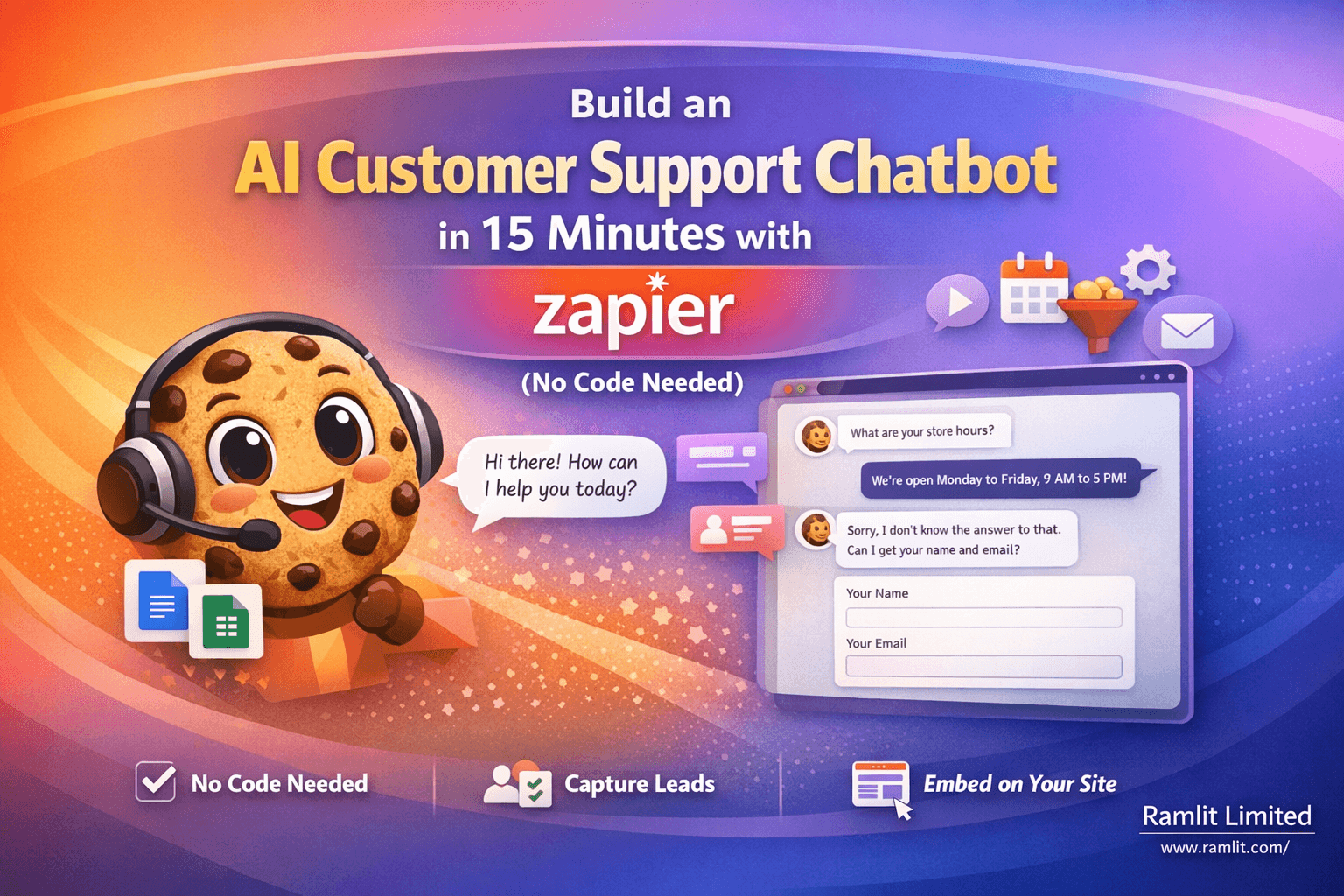

How to Build an AI-Powered Customer Support Chatbot Using Zapier (No Code Needed)
If you're running a growing business and drowning in customer inquiries, we’ve got some sweet news for you—just like the Kevin Cookie Company in this tutorial, you can build an AI-powered chatbot in under 15 minutes using Zapier, without writing a single line of code.
In this guide, we’ll walk through how to create a chatbot named Chip the Cookie Helper—a smart, friendly assistant capable of answering FAQs, collecting lead data, and even updating its own knowledge. Sound like magic? It’s automation at its finest.
Primary Keywords Used Naturally in This Blog:
- AI customer support chatbot
- No-code chatbot builder
- Zapier chatbot tutorial
- Automate customer service
- Embed chatbot on website
Why Use Zapier for Customer Support Chatbots?
Zapier is already a beloved automation platform connecting thousands of tools—but did you know it now lets you create chatbots with built-in AI? Here’s why this matters:
- ✅ No coding required
- ✅ Works with tools you already use (Google Docs, Slack, Zendesk, etc.)
- ✅ Auto-refreshing knowledge sources
- ✅ Lead capture when answers fail
- ✅ Embed anywhere—WordPress, Google Sites, and more
Whether you’re selling cookies or consulting services, this AI customer support chatbot can become your 24/7 support rep.
Step-by-Step: Building Your Chatbot in Zapier
1. Getting Started: Access the No-Code Chatbot Builder
First things first: log in to your Zapier account (free plan works just fine). Click Create → Chatbots.
You’ll see two options:
- Auto-create from website
- Build from scratch
Go with build from scratch for more control, just like in the Kevin Cookie Company demo.
Pro Tip: Name your bot something on-brand and fun—like Chip, the Cookie Helper. ✨
2. Customize the Bot’s Personality and Purpose
Navigate to the Instructions tab and set the tone for your bot:
-
Greeting: “Hi there! How can I help you today?”
-
Directive: Tell the bot its mission. In this case:
“You are Chip, a friendly assistant for the Kevin Cookie Company, a cookie bakery. Only answer questions based on verified company info.”
🛑 Important: Make sure to include a rule that says the bot must only answer based on its knowledge sources to prevent AI hallucinations.
3. Add Smart Knowledge Sources
Now we’re talking brains! Head to the Knowledge tab to give your chatbot the data it needs.
Add from Website
- Add the Kevin Cookie Company’s main site and its subpages—like recipe pages and store policies.
Add from Google Docs
- Connect your Google account and select an FAQ document with answers to common questions.
⚙️ Set a fallback message like:
“Sorry, I don’t know the answer to that.”
This helps maintain trust and ensures your bot sticks to verified info.
4. Schedule Knowledge Updates Automatically
You don’t want to manually update your bot every time you change a product description or policy. Zapier lets you:
- Schedule automatic refreshes (e.g., daily at 9 AM)
- Ensure up-to-date info without effort
This keeps your AI customer support chatbot reliable and current.
5. Set Up Logic for Lead Collection
What if the chatbot doesn’t have an answer?
Zapier lets you configure logic so the bot:
- Asks for Name, Email, and Phone
- Skips the company field (not needed for cookie lovers 🍪)
- Only collects data if it can’t answer the user’s question
All data is stored in a Zapier table—your new lead capture pipeline.
6. Make It Pretty: Theme and Branding
A chatbot should look good too! Head to the Theme tab and:
- Upload an avatar (e.g., Chip the Cookie)
- Choose brand colors (white background, cookie-brown accents)
- Add a logo or favicon
You’ll get a live preview so you can tweak design elements to match your site.
7. Select AI Model and Tweak Creativity
Zapier uses lightweight OpenAI models like GPT-4.1 Mini, but you can also connect your own OpenAI or Anthropic account for more flexibility.
Set response creativity—keep it low to ensure accurate, on-brand responses and avoid fluff.
8. Test Before You Launch
Before publishing, test in the preview window:
✅ Works:
Q: “What are your store hours?” A: “Monday to Friday, 9 AM to 5 PM.”
⛔ Doesn’t Know:
Q: “How many employees do you have?” A: “Sorry, I don’t know.” → Then collects contact info.
You now have a fully functional AI chatbot that responds naturally, collects leads, and respects its knowledge boundaries.
9. Embed the Chatbot on Your Website
Zapier gives you three sharing options:
- Public link
- Invite team collaborators
- Embed code (inline or pop-up)
For platforms like WordPress, Wix, or Google Sites, simply drop the code into your desired section.
💡 Tip: Use a prominent "Support" label or floating button to increase visibility and usage.
Review and Improve: Use Built-in Analytics
Once your chatbot is live, visit the Review and Analytics sections to:
Track Conversations:
- Identify repeat questions
- Spot broken responses
- Gather direct feedback
Monitor Performance:
- Conversations per day
- Message count
- Click-through rates
- Keyword trends
- Sentiment score (happy vs. frustrated users)
Pro Tip: Use this data to constantly refine and improve your automated customer service strategy.
Final Thoughts: Your Automated Support Rep is Ready
In just a few simple steps, you’ve built a chatbot that:
- Answers real-time customer questions
- Captures leads when it gets stuck
- Auto-updates its knowledge base
- Looks professional and on-brand
- Embeds seamlessly into your site
And all of that—without a single line of code.
Whether you’re in e-commerce, SaaS, services, or running a bakery like the Kevin Cookie Company, this Zapier chatbot tutorial proves that you can automate customer service with ease and intelligence.
FAQs
Q: Is Zapier’s chatbot builder really free? A: Yes, you can use the builder and basic Zaps on the free plan. Some features (like advanced scheduling or integrations) may need an upgrade.
Q: What kinds of businesses is this good for? A: Almost any! Retail, coaching, online stores, service providers—if you get questions, you need a bot.
Q: Can I connect my own OpenAI API key? A: Yes, for more control over the model and usage.
Q: Does the bot support images or videos in responses? A: Not yet—responses are text-based. But you can link to visual content.
Q: Can the chatbot escalate to a human? A: Yes—just add logic to forward messages or collect contact details for follow-up.
Let's Work Together
Looking to build AI systems, automate workflows, or scale your tech infrastructure? I'd love to help.
- Fiverr (custom builds & integrations): fiverr.com/s/EgxYmWD
- Portfolio: mejba.me
- Ramlit Limited (enterprise solutions): ramlit.com
- ColorPark (design & branding): colorpark.io
- xCyberSecurity (security services): xcybersecurity.io