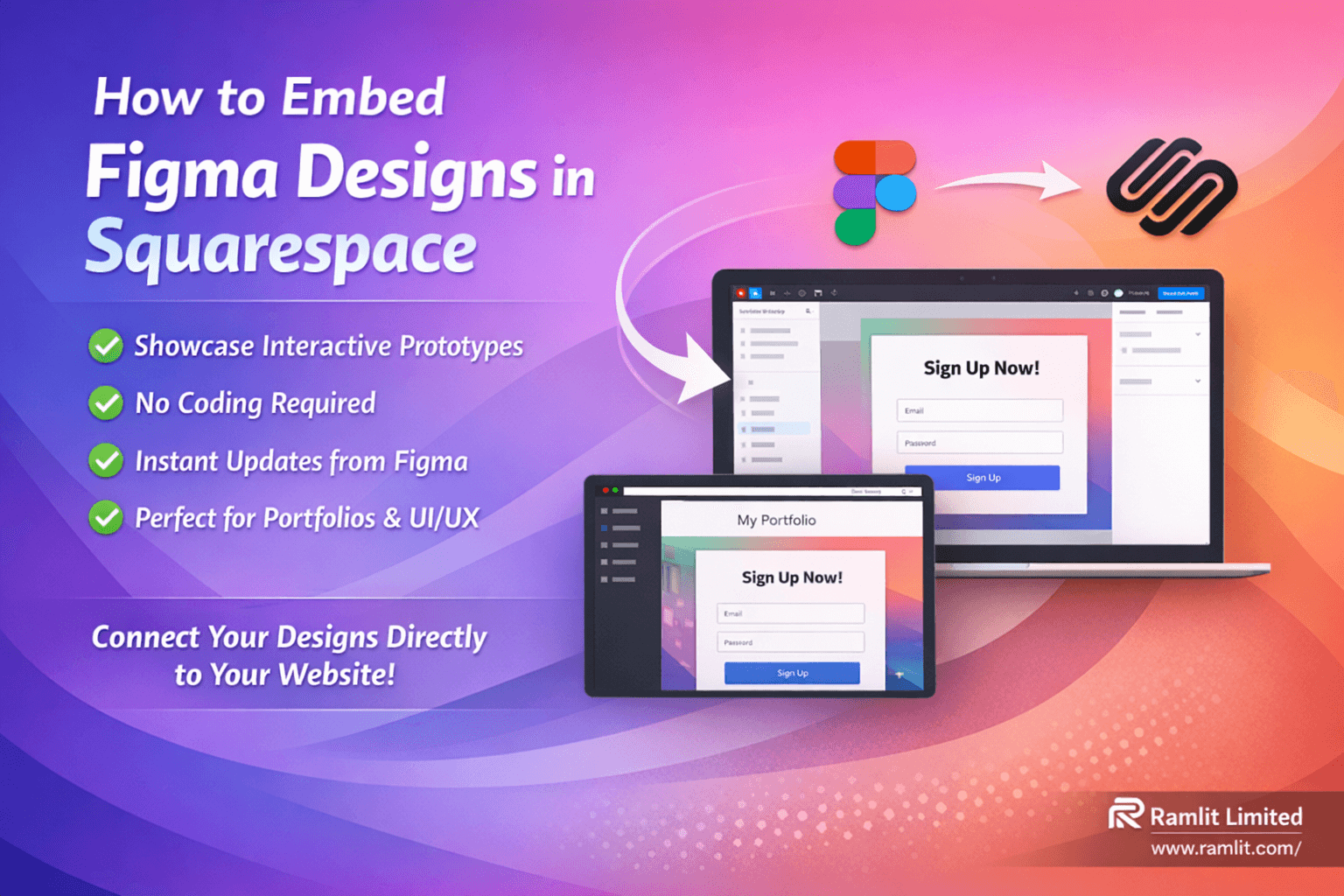

How to Embed Figma Designs into Squarespace
Bringing your design mockups from Figma into a live website doesn’t have to be complicated—especially if you're using Squarespace. Whether you're a designer, developer, or just showcasing a portfolio, embedding Figma designs directly into Squarespace is an easy and elegant way to share your work.
In this guide, we’ll cover everything from preparing your design in Figma to displaying it interactively on your Squarespace site.
Why Embed Figma in Squarespace?
Embedding Figma files into Squarespace lets you:
- ✅ Showcase high-fidelity UI/UX prototypes
- ✅ Collaborate with developers or clients
- ✅ Share design visuals without exporting static images
- ✅ Maintain up-to-date designs directly from Figma
- ✅ Avoid complicated coding or third-party integrations
Perfect for portfolios, design teams, or anyone looking to seamlessly connect design to web presence.
Tools You’ll Need
- A Figma account (free or pro)
- A Squarespace website (any plan with editing access)
- Your Figma project file ready to go
🧩 Step-by-Step: How to Embed Figma in Squarespace
Step 1: Prepare Your Squarespace Page
- Log in to your Squarespace account.
- From your dashboard, select the website you want to edit.
- Choose the page where you'd like to embed your Figma design—like the About or Portfolio page.
- Click Edit, then add a new blank section to hold the design.
- Inside the section, add a new “Embed” content block.
💡 Pro Tip: You can embed multiple designs by adding more sections and repeating these steps.
Step 2: Access and Edit Your Figma Design
-
Open Figma and sign into your dashboard.
-
Select an existing design or create a new one (e.g., sign-up form, pricing table).
-
Open the design and make final tweaks:
- Adjust font weights (bold, medium, light)
- Upload and place images
- Use layout tools like fit, crop, fill for visual precision
This is your chance to finalize the look before embedding.
Step 3: Get the Embed Code from Figma
Here’s where the magic happens:
- Click “Share” in the top-right corner of your Figma project.
- Choose “Get embed code” from the sharing options.
- Figma will generate an HTML iframe embed code—copy it to your clipboard.
🔒 This code creates a view-only interactive version of your design that’s ideal for showcasing.
Step 4: Paste the Code into Squarespace
- Return to your Squarespace editor.
- In your blank section, click on the Embed block you added.
- Select the Code Snippet option instead of pasting a URL.
- Paste the Figma embed code into the editor.
- Save and preview the page.
You’ll now see your fully interactive Figma design live on your website.
Step 5: Adjust Display and Responsiveness
While Squarespace allows basic resizing and positioning:
- You can center the embed manually
- Width/height control is limited to what Figma and the iframe allow
- For advanced styling, you might need light CSS (not covered here)
Still, for most use cases, the default display works beautifully across devices.
Step 6: Add More Designs (Optional)
Want to showcase multiple design elements or pages?
- Go back to Figma, select a different design file (e.g., a landing page mockup or pricing layout).
- Click Share → Get Embed Code, copy it.
- In Squarespace, add a new section → embed block → paste the new code.
Repeat for as many Figma embeds as needed.
🚀 Final Result: What Viewers Can Do
Once embedded, users on your Squarespace site can:
- 🔍 Zoom in and out of the design
- 🖥️ View in full-screen mode
- 📜 See design history or comments (if enabled in Figma)
However, the design remains non-editable from Squarespace—any changes must be made inside Figma.
🔎 Key Benefits of Figma + Squarespace Integration
- No need for PNG exports or image compression
- Maintain fidelity of your UI/UX design
- View-only embeds protect your files
- Interactive display impresses clients and collaborators
- Quick updates: edit once in Figma and your website stays current
🧠 Summary Table: Steps to Embed Figma Designs in Squarespace
| Step | Description | Notes |
|---|---|---|
| 1. Access Squarespace | Log in, select website, choose page, add blank section | Example: About page selected |
| 2. Open Figma | Select or create design, open for editing | Example: Sign-up/login form |
| 3. Modify Design | Adjust fonts, images, gradients | Use Figma’s editing tools |
| 4. Get Embed Code | Use Share > Get Embed Code in Figma | Copy to clipboard |
| 5. Add Embed Block | In Squarespace, add embed block as code snippet | Paste embed code |
| 6. Adjust Display | Center and resize embedded content as allowed | Size adjustment is limited |
| 7. Repeat for More Designs | Add more sections and embed codes as needed | Example: Marketing price design |
🙋 Frequently Asked Questions
Q: Can I edit the design directly in Squarespace after embedding? A: No, the embedded design is read-only. You’ll need to return to Figma to make any edits.
Q: Does the embed code support animations or interactive elements? A: Partially. While the embed is view-only, developers can hand-code interactivity separately based on the visual design.
Q: Can I embed multiple Figma files on one page? A: Yes! Just repeat the embed process in new sections or blocks.
Q: How do I control the size of the embedded design? A: You can adjust the iframe size in the code, but Squarespace has limited visual tools for advanced scaling.
Q: Is this mobile responsive? A: Figma embeds scale reasonably on mobile, but test responsiveness before publishing.
✨ Final Thoughts
If you’re a designer, developer, or creative pro looking to showcase your work directly on your site, embedding your Figma designs in Squarespace is a total game-changer.
With a few clicks:
- You present your work exactly as it was designed
- You reduce friction between design and implementation
- You impress clients, collaborators, and site visitors alike
So go ahead—connect your creativity with your site using this fast and effective Figma-to-Squarespace workflow.
Let's Work Together
Looking to build AI systems, automate workflows, or scale your tech infrastructure? I'd love to help.
- Fiverr (custom builds & integrations): fiverr.com/s/EgxYmWD
- Portfolio: mejba.me
- Ramlit Limited (enterprise solutions): ramlit.com
- ColorPark (design & branding): colorpark.io
- xCyberSecurity (security services): xcybersecurity.io