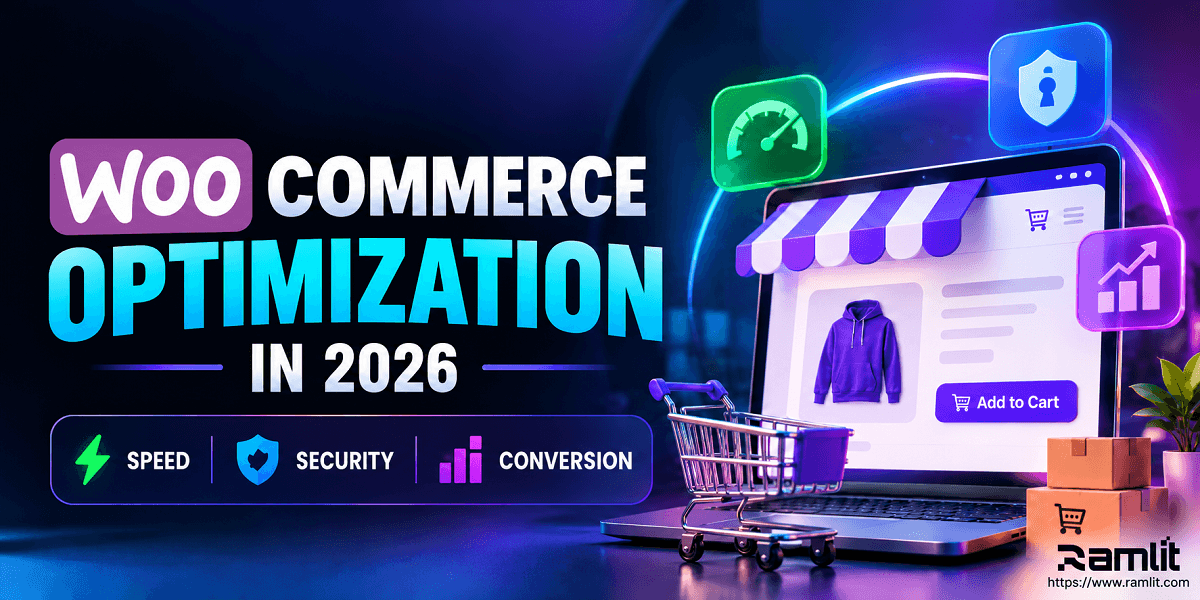

WooCommerce Optimization in 2026: Speed, Security, Checkout and Conversion Guide
A WooCommerce store can have excellent products and still struggle to sell.
The problem is often not the product.
It is the experience surrounding the product.
A visitor arrives and waits too long for the page to load.
They cannot immediately understand the offer.
The mobile layout feels awkward.
Checkout asks for information that does not seem necessary.
Payment fails.
Or the store simply does not feel trustworthy enough for the visitor to enter their card details.
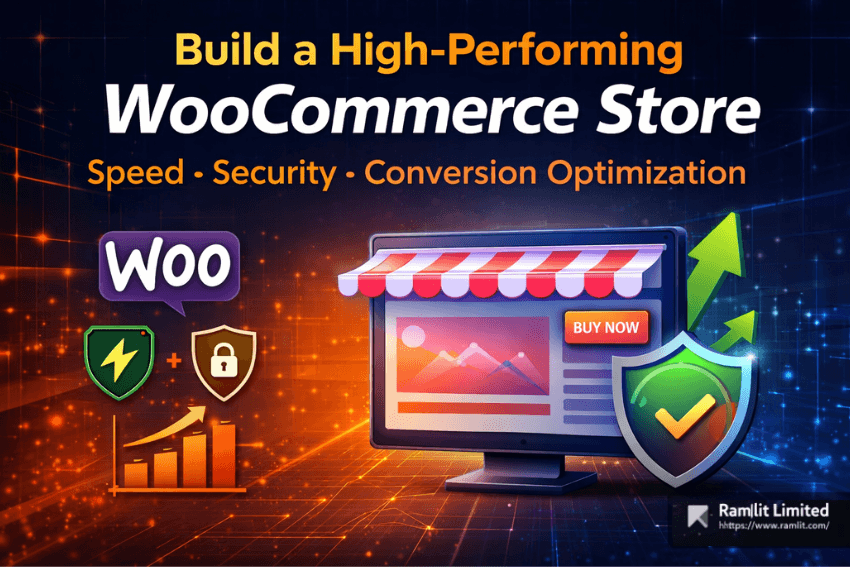
A high-performing WooCommerce store therefore needs more than an attractive theme.
It needs three systems working together:
Performance
     +
Security
     +
Conversion UX
     =
A stronger ecommerce experience
WooCommerce's own developer documentation recommends improving areas such as caching, images, database performance, frontend resources, and CDN delivery when optimizing store performance. The WooCommerce Developer Blog
This guide explains how to approach WooCommerce optimization systematically in 2026.
Why WooCommerce Stores Underperform
WooCommerce itself is flexible.
That flexibility also means two stores using the same ecommerce platform can perform very differently.
Common problems include:
- Poor hosting
- Oversized images
- Heavy themes
- Inefficient plugins
- Too many third-party scripts
- Database bloat
- Poor caching configuration
- Weak mobile UX
- Checkout friction
- Outdated software
- Security misconfiguration
- Broken payment flows
The important point is that these problems interact.
For example:
Slow product page
      ↓
Visitor becomes impatient
      ↓
Lower product engagement
      ↓
Fewer visitors reach checkout
Or:
Poorly maintained plugin
      ↓
Security vulnerability
      ↓
Site compromise
      ↓
Downtime / customer distrust
Optimization should therefore cover the entire buying journey rather than one Lighthouse screenshot.
1. Start With the Hosting Environment
Your ecommerce application can only perform within the limits of the server underneath it.
A WooCommerce store must dynamically process:
- Carts
- Customer sessions
- Orders
- Inventory
- Checkout
- Payments
- Account information
- Database queries
That makes server quality particularly important.
Shared Hosting Is Not Automatically Bad
A small store with low traffic can run successfully on quality shared hosting.
The real questions are:
- How much CPU is available?
- How much memory?
- Are resources aggressively throttled?
- What happens during traffic spikes?
- Is server-level caching available?
- What PHP version is supported?
- How responsive is the database?
- Are backups available?
- Can you scale when necessary?
Do not upgrade hosting merely because someone says:
WooCommerce requires managed hosting.
It does not.
Upgrade when the existing infrastructure cannot reliably meet your performance, security, operational, or scalability requirements.
Recommended PHP Environment
WordPress currently recommends PHP 8.3 or newer, along with MySQL 8.0+ or MariaDB 10.11+ and HTTPS support. WordPress.org
WooCommerce likewise recommends PHP 8.3 or newer for a modern environment. It has also announced that WooCommerce 11.6, planned for February 2027, will require PHP 8.1 or newer. The WooCommerce Developer Blog
For a new deployment in late 2026, running a currently supported PHP version after compatibility testing is much better than designing around an old minimum.
Server Location Still Matters
If most customers are in one region, hosting your origin reasonably close to that audience can reduce latency.
For global stores, CDN and edge delivery can reduce the distance required to fetch static resources.
2. Measure Performance Before Optimizing
Do not begin by installing five optimization plugins.
Establish a baseline.
Useful tools include:
- PageSpeed Insights
- Chrome DevTools
- Lighthouse
- Search Console Core Web Vitals
- WebPageTest
- Server monitoring tools
- Query Monitor for debugging
Look separately at:
Homepage
Product category
Product page
Cart
Checkout
Account
Your homepage may be fast while product pages are slow.
A cached product page may be fast while checkout processing is slow.
Those are different problems.
3. Understand Core Web Vitals Properly
Google recommends providing a good overall page experience and says Core Web Vitals are among the signals used by its ranking systems. Good scores, however, do not guarantee top rankings. Google for Developers
For ecommerce, the practical concerns are:
Largest Contentful Paint
How quickly does the main product or page content become visible?
Common problems:
- Oversized hero images
- Slow server response
- Render-blocking CSS
- Heavy sliders
Interaction to Next Paint
How responsive does the store feel when the user interacts?
Problems may come from:
- Excessive JavaScript
- Third-party marketing scripts
- Complex page builders
- Poor frontend logic
Cumulative Layout Shift
Do page elements move unexpectedly?
Common ecommerce examples:
- Product images loading without reserved dimensions
- Review widgets shifting the page
- Dynamic banners appearing late
- Fonts changing page geometry
Optimize for the person shopping, not merely the performance score.
4. Use a Theme That Supports the Store You Need
A theme affects:
- HTML structure
- CSS
- JavaScript
- Product templates
- Mobile behavior
- Checkout customization
- Accessibility
The best theme is not necessarily the one with the fewest kilobytes.
Choose one that provides the functionality you actually need without forcing unnecessary components onto every page.
Astra, GeneratePress, Kadence, Storefront and other established themes may be appropriate depending on the project.
But do not choose solely from a list.
Test the actual theme with:
Your plugins
+
Your page builder
+
Your product catalog
+
Your payment methods
+
Your tracking stack
Compatibility matters.
5. Optimize Images Without Damaging Product Quality
For many ecommerce sites, images are among the heaviest page assets.
But aggressive compression can also hurt sales if product photos become unattractive.
The goal is balance.
Practical Image Checklist
Use:
- Correct image dimensions
- Responsive images
- Compression
- Modern formats such as WebP where supported
- Lazy loading below the fold
- Appropriate thumbnails
- High-resolution originals where zoom is important
Avoid uploading a 5000-pixel image only to display it at 500 pixels.
WooCommerce's performance guidance specifically includes image optimization among its recommended areas. The WooCommerce Developer Blog
6. Configure Caching Correctly
Caching can dramatically reduce unnecessary application work.
But ecommerce caching must be configured differently from a static blog.
Pages such as:
/cart/
/checkout/
/my-account/
contain dynamic, user-specific information and generally should not be blindly cached as public pages.
Meanwhile, many informational, category, and product-page resources can benefit significantly from caching.
Your stack may include:
- Page caching
- Browser caching
- Object caching
- CDN caching
- PHP OPcache
Depending on hosting infrastructure, tools might include:
- WP Rocket
- LiteSpeed Cache
- Host-level caching
- Redis object caching
Avoid stacking multiple plugins performing the same caching function without understanding how they interact.
7. Use a CDN Where It Solves a Real Problem
A CDN can distribute static assets across geographically distributed infrastructure.
WooCommerce's own optimization guidance suggests CDN providers such as Cloudflare, Fastly, or Amazon CloudFront as possible options. The WooCommerce Developer Blog
A CDN can help deliver:
- Images
- CSS
- JavaScript
- Fonts
- Other static files
Depending on the provider and configuration, it may also provide:
- DDoS mitigation
- WAF capabilities
- Bot controls
- Edge caching
But a CDN will not fix a slow database query or badly written plugin.
Think of it as one layer in the system.
8. Reduce Unnecessary JavaScript and Third-Party Scripts
Ecommerce sites accumulate scripts quickly:
Analytics
Ads
Chat
Reviews
Heatmaps
A/B testing
Affiliate tracking
Social widgets
Payment providers
Popups
Each may serve a business purpose.
Together, they can become expensive.
Audit third-party scripts and ask:
What business decision depends on this script?
If nobody can answer, consider removing it.
For scripts that remain:
- Delay when appropriate
- Defer non-critical resources
- Load only where necessary
- Avoid duplicate analytics tags
- Monitor their performance impact
9. Plugin Count Is the Wrong Metric
A common WooCommerce myth is:
More plugins automatically mean a slower website.
Not necessarily.
Ten well-engineered plugins may create less overhead than one poorly written extension.
The better questions are:
- Does it make expensive database queries?
- Does it load scripts globally?
- Does it make external API calls?
- Is it maintained?
- Does it conflict with another plugin?
- Does it add unnecessary scheduled jobs?
- Is it actually being used?
Audit behavior, not just quantity.
WooCommerce also recommends choosing reputable extensions and removing software that is no longer maintained or has known security problems. The WooCommerce Developer Blog
10. Maintain the WooCommerce Database
WooCommerce stores can accumulate substantial data over time.
Examples include:
- Sessions
- Transients
- Logs
- Order metadata
- Scheduled actions
- Revisions
- Plugin tables
Database optimization should be deliberate.
Do not install a database cleaner and delete tables indiscriminately.
Before cleanup:
Backup
   ↓
Identify data
   ↓
Understand ownership
   ↓
Test cleanup
   ↓
Verify application
For high-volume stores, database monitoring and query analysis can become as important as frontend optimization.
11. Security Is Part of Ecommerce Performance
A secure store is not merely a technical goal.
It protects:
- Customers
- Orders
- Revenue
- Business continuity
- Brand reputation
WooCommerce's current security guidance recommends maintaining updates, hardening WordPress, protecting customer data, using secure coding practices, monitoring the store, and maintaining backups. The WooCommerce Developer Blog
12. Use HTTPS Everywhere
WordPress itself recommends HTTPS support for hosting environments. WordPress.org
For ecommerce, HTTPS should cover the entire site—not only checkout.
It protects information in transit between the customer and server.
Also verify:
- HTTP redirects correctly to HTTPS
- Mixed-content errors are absent
- HTTPS canonical URLs are used
- Secure cookies are configured appropriately
13. Protect Administrative Accounts
The WordPress administrator account can control the entire store.
Protect it accordingly.
Use:
- Unique passwords
- Two-factor authentication
- Least-privilege user roles
- Limited administrator accounts
- Login monitoring
WooCommerce specifically recommends strong passwords, login protections, and 2FA as part of WordPress hardening. The WooCommerce Developer Blog
Changing /wp-admin/ or hiding the login URL may reduce opportunistic noise, but it should not be treated as the primary security control.
Strong authentication matters much more.
14. Keep WordPress, WooCommerce, Themes and Plugins Updated
Outdated software can expose publicly known vulnerabilities.
WooCommerce recommends regularly updating:
- WordPress
- WooCommerce
- Plugins
- Themes
and removing unmaintained components. The WooCommerce Developer Blog
For a revenue-generating store, a safer workflow is:
Backup
  ↓
Staging
  ↓
Update
  ↓
Test critical flows
  ↓
Deploy
  ↓
Verify production
Critical flows should include:
- Product page
- Add to cart
- Checkout
- Payment
- Order confirmation
- Customer account
15. Maintain Recoverable Backups
A backup that has never been restored is only an assumption.
Maintain backups of:
- Database
- Uploads
- Themes
- Plugins
- Custom code
- Configuration
WooCommerce recommends automated backups and secure off-site storage as part of its current security guidance. The WooCommerce Developer Blog
Periodically perform a test restore.
That tells you whether recovery actually works.
16. Use Security Plugins as a Layer, Not the Whole Strategy
Tools such as Wordfence, Sucuri, or other reputable security products can help with:
- Scanning
- Firewalling
- Login controls
- File integrity
- Alerts
WooCommerce itself mentions reputable security plugins as one useful security layer. The WooCommerce Developer Blog
But installing a plugin does not make a store secure automatically.
Security also depends on:
Server
WordPress
Plugins
Custom code
Credentials
Permissions
Backups
Monitoring
Operational practices

17. Conversion Optimization Starts on the Product Page
A visitor should quickly understand:
- What is being sold?
- Who is it for?
- What does it cost?
- Why should I trust it?
- What happens after I buy?
- What should I do next?
Strong Product Pages Usually Need
- Clear product name
- Useful photos
- Visible price
- Obvious CTA
- Important specifications
- Benefits
- Shipping information where applicable
- Return information
- Relevant reviews
- Stock/availability information
- Product variations that are easy to understand
Do not make customers hunt through accordion menus for information essential to the purchase decision.
18. Write Product Copy Around Decisions
Poor product description:
Premium backpack manufactured using high-quality materials.
Better:
A water-resistant 20L backpack designed for daily commuting, with a padded 15-inch laptop compartment and quick-access front pocket.
Specificity reduces uncertainty.
Use:
Feature
    ↓
Practical meaning
    ↓
Customer benefit
For example:
65W USB-C charging
    ↓
Supports higher-power laptop charging
    ↓
Carry one charger for compatible devices
19. Remove Unnecessary Checkout Friction
Checkout is where intent becomes revenue.
WooCommerce's Checkout Block separates the checkout into areas such as checkout fields and totals and supports store-specific configuration. WooCommerce
Review every required field.
Ask:
Do we actually need this information to complete the order?
If not, consider removing or making it optional where your business and regulatory requirements allow.
20. Use Guest Checkout When It Fits the Business
WooCommerce lets store owners enable or disable guest checkout in WooCommerce → Settings → Accounts & Privacy. WooCommerce
Guest checkout can reduce forced-account friction for many stores.
But it is not correct for every business.
For example, WooCommerce notes that subscription purchases require an account. WooCommerce
So the right question is not:
Is guest checkout always better?
It is:
Does creating an account provide a genuine requirement or benefit for this transaction?
21. Make Payment Options Clear
Offer payment methods appropriate for:
- Target market
- Product type
- Currency
- Customer preferences
- Fraud profile
More payment methods are not automatically better.
Every gateway also creates:
- Maintenance
- Compatibility requirements
- Checkout UI
- Failure scenarios
- Security considerations
Track payment failures.
A user repeatedly reaching checkout but failing payment is a very different problem from a visitor who never adds a product to the cart.
22. Optimize Mobile Shopping as Its Own Experience
Do not treat mobile as a desktop page squeezed into a smaller width.
Test the entire journey on real devices:
Landing page
↓
Category
↓
Search
↓
Product
↓
Variation selection
↓
Add to cart
↓
Cart
↓
Checkout
↓
Payment
Check:
- Tap targets
- Sticky elements
- Input fields
- Keyboard behavior
- Product-gallery gestures
- Coupon UI
- Payment widgets
- Error messages
Google's broader page-experience guidance also emphasizes mobile usability and secure delivery alongside Core Web Vitals. Google for Developers
23. Use Trust Signals That Provide Real Information
Trust is not created by filling checkout with decorative padlock icons.
Better trust signals include:
- Real business identity
- Clear contact options
- Accurate shipping information
- Transparent returns
- Genuine reviews
- Recognizable payment methods
- HTTPS
- Clear privacy information
Trust comes from reducing uncertainty.
Avoid fake:
- Reviews
- Countdown timers
- Stock warnings
- Security badges
- Urgency
Those may damage credibility instead of increasing it.
24. Recover Abandoned Carts Carefully
Cart recovery can include:
- Reminder emails
- Saved carts
- Retargeting where legally and operationally appropriate
- Customer-service follow-up
But do not immediately train customers to abandon carts by automatically sending a discount after every incomplete checkout.
Start by understanding why they abandon.
Potential causes include:
Unexpected shipping
Payment failure
Forced account
Slow checkout
Coupon distraction
Technical error
Unclear delivery date
Fix systemic problems before adding incentives.
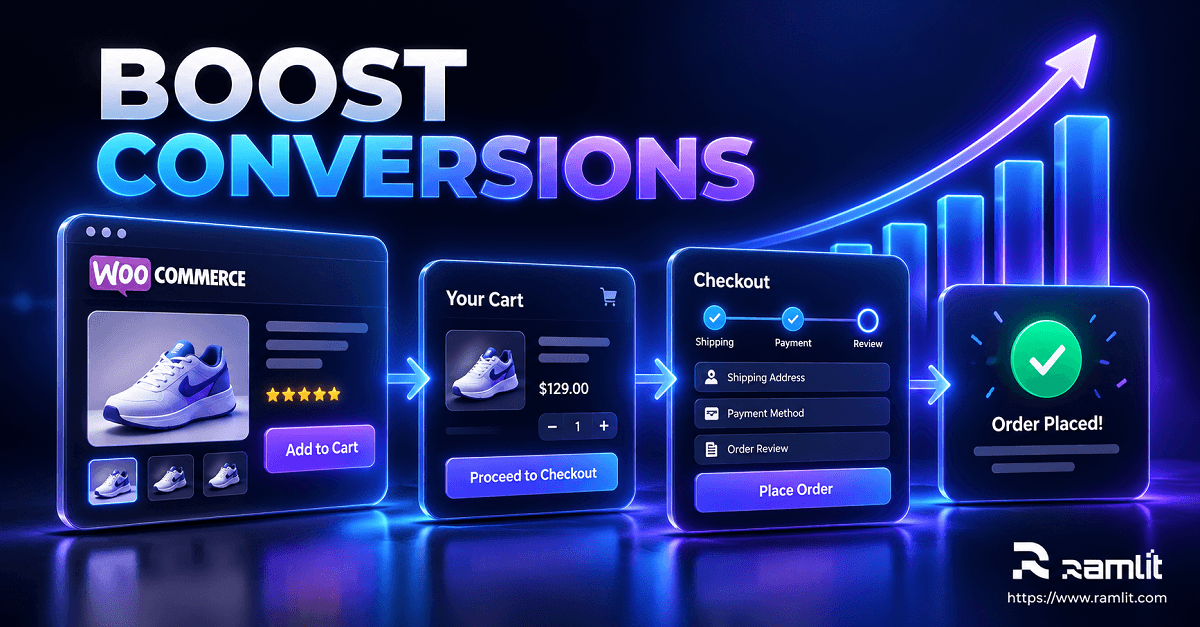
25. Measure the Ecommerce Funnel
Do not optimize WooCommerce based only on traffic.
Track the path:
Sessions
   ↓
Product views
   ↓
Add to cart
   ↓
Checkout started
   ↓
Payment attempted
   ↓
Purchase
If product views are high but add-to-cart is low, investigate the product experience.
If checkout starts are healthy but purchase completion is weak, investigate checkout.
If purchases are strong but repeat purchases are poor, that may be a retention or product problem.
Different funnel leaks require different solutions.
26. Recommended Plugin Categories
There is no universal “must-install” plugin stack.
Evaluate each category based on your actual store.
Performance
Possible options:
- WP Rocket
- LiteSpeed Cache
- Hosting-native caching
Security
Possible options:
- Wordfence
- Sucuri
- Hosting/WAF security stack
Backups
Possible options:
- UpdraftPlus
- Hosting-native backups
- Infrastructure-level backups
SEO
Possible options:
- Rank Math
- Yoast SEO
- Other maintained SEO tools
Images
Possible options:
- ShortPixel
- Imagify
- CDN/image optimization services
Checkout / CRO
Possible tools depend heavily on the store's requirements.
Avoid adding a checkout plugin merely because it promises higher conversions.
First identify the problem.
27. Build a Maintenance Routine
WooCommerce optimization is not a one-time project.
Stores change continuously.
Products are added.
Plugins update.
Marketing scripts appear.
Payment gateways change.
Traffic grows.
Weekly
Consider checking:
- Failed orders
- Critical errors
- Security alerts
- Backups
- Important updates
Monthly
Review:
- Store performance
- Core Web Vitals
- Checkout errors
- Conversion funnel
- Payment failures
- Plugin health
- Database growth
Quarterly
Perform a deeper review of:
- Full purchase journey
- Mobile checkout
- Plugin inventory
- Security
- Backup recovery
- Database performance
- Third-party scripts
- Hosting capacity
The schedule should match the risk and transaction volume of the store.
28. Test Updates on Staging
A production ecommerce site should not be the first place you discover that a plugin update breaks checkout.
Use a staging environment where practical.
Before deployment, test:
Homepage
Category
Product
Variation
Cart
Coupon
Checkout
Payment
Account
Transactional email
For major stores, automated end-to-end checkout testing can make this process even more reliable.
29. Common WooCommerce Optimization Mistakes
Mistake: Installing Multiple Optimization Plugins
More optimization software can produce conflicts rather than more optimization.
Understand what each tool owns.
Mistake: Chasing a Perfect Lighthouse Score
A perfect synthetic score is not the business objective.
A fast, stable purchasing experience is.
Mistake: Measuring Only the Homepage
Customers spend time on product, cart, checkout, and account pages too.
Test them.
Mistake: Assuming Fewer Plugins Always Means Faster
Plugin quality and execution matter more than the raw count.
Mistake: Caching Checkout Incorrectly
Ecommerce contains dynamic user-specific data.
Configure caching accordingly.
Mistake: Optimizing Desktop and Ignoring Mobile
A store is only as usable as the device on which the customer is trying to buy.
Mistake: Deploying Updates Without Testing
One broken gateway can stop revenue even while the rest of the website looks perfect.
Mistake: Treating Security as a Plugin
Security is an architecture and operational discipline.
30. A Practical WooCommerce Optimization Roadmap
If your store is already live, work in this order.
Phase 1 — Measure
Capture:
Performance
Hosting
Errors
Conversion funnel
Security posture
Checkout health
Phase 2 — Fix Critical Problems
Prioritize:
- Downtime
- Checkout failures
- Payment failures
- Security vulnerabilities
- Severe performance bottlenecks
Phase 3 — Improve Performance
Work on:
- Hosting
- Caching
- Images
- Frontend resources
- Database
- CDN
- Third-party scripts
Phase 4 — Improve Product UX
Review:
- Product information
- Images
- CTAs
- Variations
- Shipping information
- Returns
- Reviews
Phase 5 — Improve Checkout
Remove unnecessary friction.
Test:
- Guest checkout where appropriate
- Form fields
- Payment options
- Errors
- Mobile behavior
Phase 6 — Measure Again
Compare before and after.
Do not rely on impressions.
Use evidence.
WooCommerce Optimization Checklist
PERFORMANCE

□ Modern supported PHP
□ Appropriate hosting resources
□ Correct caching configuration
□ Optimized product images
□ CDN evaluated/configured
□ Third-party scripts audited
□ Database reviewed
□ Core Web Vitals monitored


SECURITY

□ HTTPS enabled
□ WordPress updated
□ WooCommerce updated
□ Plugins/themes maintained
□ Admin accounts protected by 2FA
□ Least-privilege roles
□ Off-site backups
□ Restore tested
□ Security monitoring enabled


CONVERSION

□ Clear product proposition
□ Quality images
□ Visible CTA
□ Transparent pricing
□ Shipping explained
□ Returns explained
□ Checkout fields reviewed
□ Guest checkout considered
□ Payment flow tested
□ Mobile purchase journey tested


OPERATIONS

□ Staging environment
□ Update procedure
□ Error monitoring
□ Uptime monitoring
□ Checkout tests
□ Conversion analytics
□ Regular maintenance cycle
Frequently Asked Questions
How fast should a WooCommerce store be?
There is no single number that determines whether an ecommerce store is “fast enough.”
Measure real-user experience and Core Web Vitals, and investigate server response, page rendering, interaction responsiveness, and layout stability.
Google recommends good Core Web Vitals but explicitly notes that perfect performance scores do not guarantee better rankings. Google for Developers
Is managed WooCommerce hosting required?
No.
Good shared, VPS, cloud, dedicated, or managed infrastructure can all work depending on traffic, architecture, expertise, and workload.
The right environment is the one that reliably meets your requirements.
Which PHP version should WooCommerce use in 2026?
WooCommerce recommends PHP 8.3 or newer for an updated environment, while WordPress also currently recommends PHP 8.3+. WooCommerce
Compatibility with your extensions and custom code should still be tested before upgrading production.
How many WooCommerce plugins are too many?
There is no universal safe number.
One badly engineered plugin can cause more performance problems than several efficient ones.
Audit plugin quality, maintenance, database activity, scripts, external requests, and business necessity.
Should WooCommerce allow guest checkout?
Often, but not always.
WooCommerce provides a native guest-checkout option, although some products and business models require customer accounts. WooCommerce
Make the decision based on operational requirements and customer friction.
Should I use a CDN?
A CDN can be useful when static assets need to reach geographically distributed customers efficiently.
WooCommerce's own performance documentation includes CDN usage as a recommended optimization area. The WooCommerce Developer Blog
Is a security plugin enough?
No.
A security plugin is one layer.
WooCommerce recommends a broader approach involving updates, secure coding, WordPress hardening, customer-data protection, monitoring, backups, and secure plugins/themes. The WooCommerce Developer Blog
A Better WooCommerce Store Is a Better System
Successful WooCommerce optimization is not about installing another plugin.
It is about reducing friction throughout the system.
Reliable infrastructure
        ↓
Fast storefront
        ↓
Clear product experience
        ↓
Secure customer journey
        ↓
Low-friction checkout
        ↓
Successful payment
        ↓
Reliable order processing
Speed matters.
Security matters.
Design matters.
Checkout matters.
But they work best when treated as parts of one ecommerce system.
Start by measuring the real store.
Fix the problems that can stop transactions.
Improve performance without breaking dynamic ecommerce behavior.
Protect customer and administrative access.
Make product decisions easier.
Remove unnecessary checkout friction.
Test everything on mobile.
And continue measuring after every major change.
That is a stronger WooCommerce strategy than chasing plugin lists, arbitrary loading-time promises, or generic conversion hacks.
For businesses that need professional WordPress or WooCommerce development, Ramlit Limited currently has a verified WordPress offering that includes WooCommerce storefront development, cart and checkout setup, performance optimization, security hardening, backups, and related ecommerce work. Ramlit Limited
Need to build, optimize, or modernize a WooCommerce store?